By Ethan ColePublished 5 min read

Black Friday banners have one job: tell people what the deal is before they scroll past. That is mostly a writing problem, not a design problem. If you know the offer and the two or three lines that sell it, an AI image model can handle the layout, the background and the product scene.
This guide walks through the process we use with the banner maker on image2ai, with six prompts you can copy and change.
Step 1: Write the words before the prompt
Image models are good at short text and unreliable with long text. Decide these three lines first:
- Headline: two to four words, for example “BLACK FRIDAY” or “BIGGEST SALE OF THE YEAR”.
- Offer line: one short line with the real offer, for example “30% off all candles”.
- Optional third line: a date or a code, only if it will not change.
Only advertise a discount you actually give. If prices, dates or codes may change, leave them out of the image and add them in your design tool or in the post text, where they are easy to update.
Step 2: Pick a layout and a palette
Most Black Friday banners use one of three layouts:
- Text left, product right for shop pages and ads.
- Centred text for social posts and email headers, which are often cropped at the sides.
- Product grid when the sale covers several items.
Black and gold, black and neon, or black and one strong brand colour are the usual palettes. Name the colours in the prompt instead of writing “festive colours”.
Step 3: Generate with the right settings
- Model: GPT Image 2 is preset in the banner maker because it keeps short headlines readable. Try GPT Image 2.5 as a second option.
- Ratio: 16:9 is a good starting point for web banners. Use 1:1 or 4:5 for social feeds and 9:16 for stories.
- Your product: upload a clean product photo as a reference image and add “keep the product unchanged”.
- Size: test at 1K (4 credits with GPT Image 2), then make the final version at 2K or 4K.
Step 4: Check and crop
Before you publish, check three things at full size: every word is spelled correctly, the product looks like the real product, and nothing unexpected appeared (extra text, a logo, a stray hand). Then crop to the pixel size your platform asks for.
6 Black Friday banner prompts
Each prompt uses an invented product so you can swap in your own. Copy one into the banner maker, change the words in quotes, and generate.
1. Classic black and gold sale banner
Wide web banner, 16:9: headline “BLACK FRIDAY” in large bold gold sans-serif on the left, smaller white line “Up to 40% off everything” under it, a matte black background with subtle gold confetti on the right, clean and premium, no other text, no logos.
2. Product hero with a discount line
Wide promotional banner, 16:9: a minimalist ceramic table lamp with a linen shade glowing warmly on the right, on a dark walnut surface, headline “BLACK FRIDAY” in white bold sans-serif on the left, line “30% off lighting” below it, deep charcoal background, soft studio light, no other text, no logos.
3. Neon night style for tech products
Wide banner, 16:9: a pair of plain matte-black wireless headphones floating in the centre, surrounded by soft pink and cyan neon light trails, headline “BLACK FRIDAY” in glowing white letters above, small line “Deals end Monday” below, dark background, no other text, no logos.
4. Square social post with centred text
Square social media post, 1:1: centred headline “BLACK FRIDAY” in heavy black letters on a bright yellow background, line “Everything 25% off” below in black, thin black frame, simple bold graphic style, no other text, no logos.
5. Story format for a local café
Vertical story image, 9:16: a cozy café counter with a tray of cinnamon buns and two cups of coffee, warm evening light, headline “BLACK FRIDAY” in cream serif letters at the top, line “Buy one, get one free” at the bottom, no other text, no logos.
6. Product grid for a multi-item sale
Wide banner, 16:9: a neat grid of six plain products on a black background (a scented candle, a wool beanie, a leather notebook, a ceramic mug, a water bottle and a small plant), each softly lit, headline “BLACK FRIDAY” across the top in gold, line “Gifts from $10” below, no other text, no logos.
If the offer line in prompt 6 does not match your prices, change it before you generate.
What it looks like with a product photo
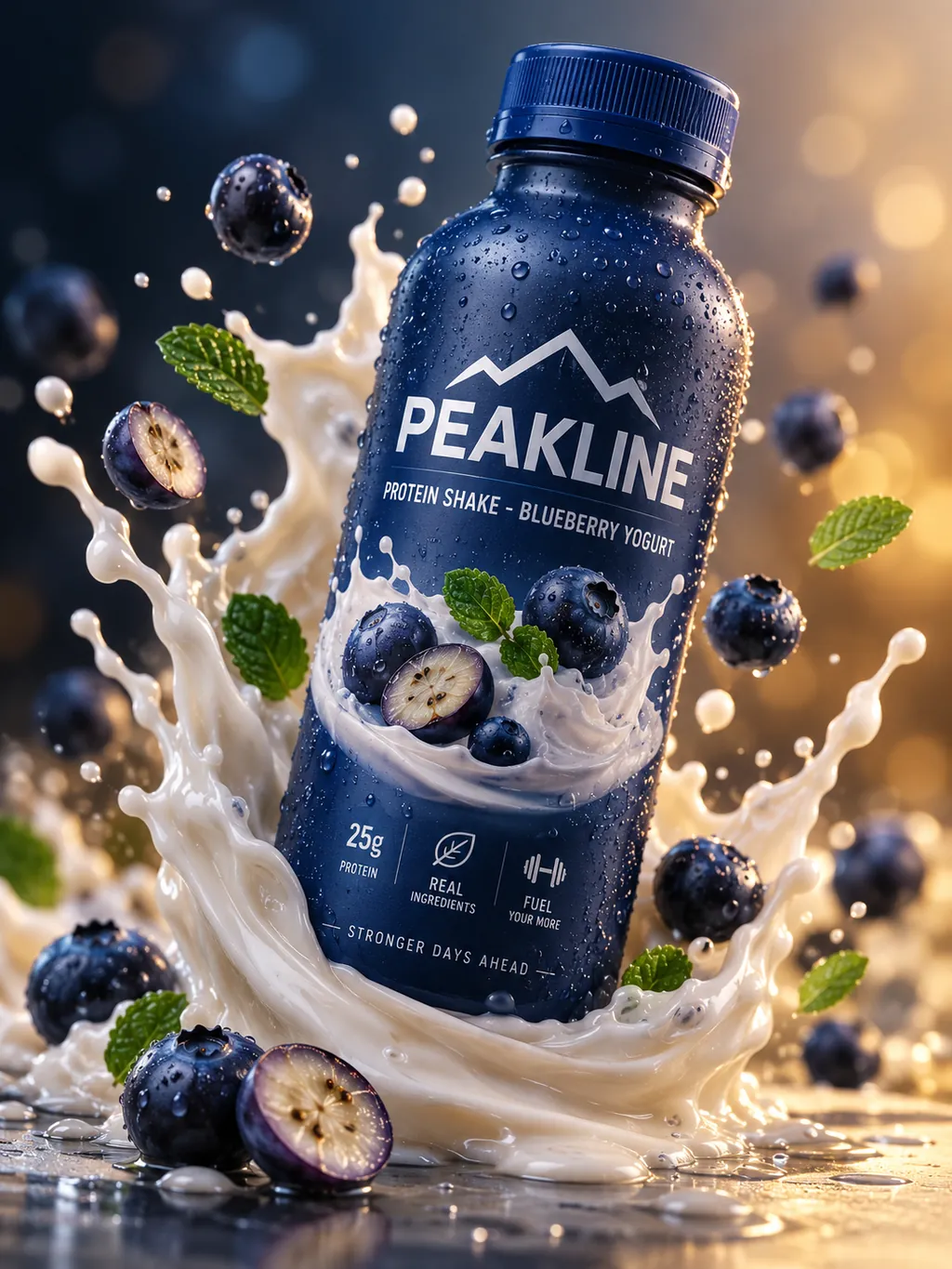
A banner built around a clear product shot works the same way: the product carries the picture, and two short lines carry the offer.
Common mistakes
- Too much text. Long paragraphs get misspelled. Keep the image to two or three lines.
- Invented brands. If you do not say “no logos”, the model may add a made-up logo. Add your own logo afterwards.
- A different product. Without a reference image, the model invents a product. Upload yours.
- Wrong crop. A 16:9 banner cut to a square loses the sides. Generate in the ratio you need or keep text in the centre.
Next steps
- Open the banner maker to start from these prompts.
- Need a different background for your product photo first? Use change background.
- Planning a holiday campaign as well? See Christmas background ideas.
FAQ
Which AI model is best for Black Friday banners with text?
GPT Image 2 or GPT Image 2.5, because they keep short headlines readable. Keep the text short either way.
Can I add my logo to an AI banner?
Generate the banner with “no logos”, then place your logo in a design tool. Generated logos are never exact.
Can I use AI banners in paid ads?
Images made with paid credits have no watermark and can be used commercially. Make sure every claim on the banner matches the offer you actually run.
image2ai Black Friday campaign
Pro and Max yearly plans save up to 55% off the list price for the first year (the second year renews at the regular yearly price), and the discount is already applied. Basic, monthly plans and credit packs stay at their regular prices.
Ends December 1, 2026, 11:59 PM ET
Discount auto-applied on the deal page — no code needed. One discount per order.
About the author
Ethan Cole